

You already talk to ChatGPT or Claude most days. Ask either one how you are doing with money and you get a careful essay about budgeting in general, because it has nothing of yours to look at. Finances For AI is the missing part: a private record of your spending, budgets, goals, subscriptions and net worth that your assistant can read and update. With it behind the chat, “how am I doing this month?” gets a real answer, with your numbers, and a chart when a chart says it better.
This post walks through what that looks like in practice: how the record gets filled, what you can ask, what appears in the chat, and what it costs.
The division of labour
The idea is simple. Your assistant does the reading and the talking. Finances For AI keeps the record and does the maths. It runs no AI model of its own. It is a service your assistant connects to through the Model Context Protocol (MCP), the open standard both assistants use for connectors.
A coach here reads your numbers back against what you set, says what changed and where the money went. Finances For AI keeps that record and adds no advice of its own. What your assistant makes of it is yours to ask for: “how am I doing?”, or “what would get me to my trip goal?”. The answer is your assistant’s reading of your own records. For a decision with real money on the line, a licensed professional is still worth talking to.
Adding it takes a minute
Finances For AI is a remote server you add to ChatGPT or Claude by its address. In ChatGPT on the web, that is Plugins, then Add custom MCP server. In Claude, it is Connectors, then Add custom connector. Either way you paste one address, choose OAuth, and sign in with a one-time code sent to your email. The steps for each are on the add page.
Then say “set up Finances For AI”. A short Setup Wizard opens in the chat: your currency and time zone, a starter set of categories you can keep or edit, your regular bills, and one overall monthly budget if you want one. You can skip any step.
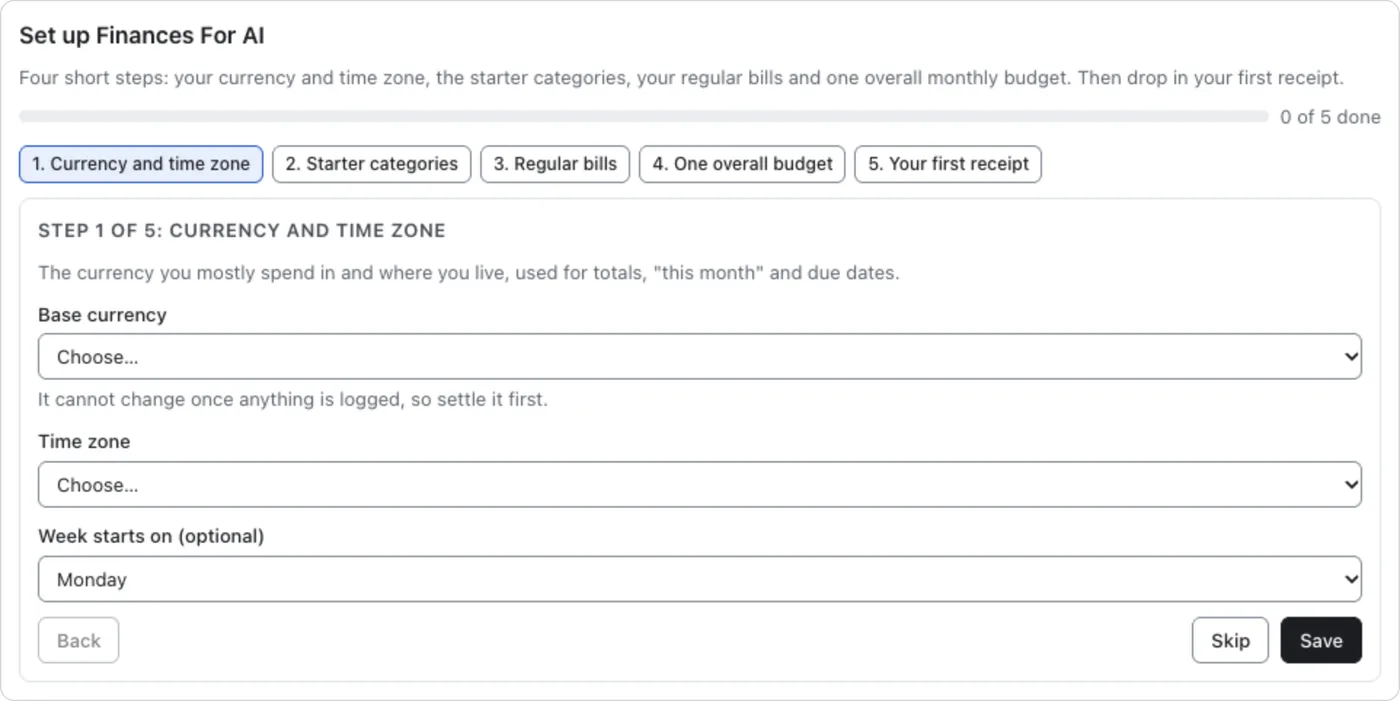
One account works everywhere. Add Finances For AI in ChatGPT and in Claude with the same email and both see the same records.
Filling the record: say it, or drop in the receipt
Manual trackers fail because typing every purchase is a chore. Here, a sentence is a complete entry:
- “I spent $42 at Costco.” Logged under Groceries, one line back to confirm.
- “Rent went out, $1,850.” Logged under Rent.
- “Add Netflix, $15.49 a month, renews on the 12th.” A recurring subscription with its next due date.
- “My savings account is at $8,240 as of today.” A balance recorded; net worth updated.
The bigger time-saver is the receipt. Attach a photo or a PDF and say “Here’s my receipt”. Your assistant reads the merchant, date, items, tax and total. Finances For AI checks that the items add up to the subtotal and that the subtotal plus tax matches the total. It looks for duplicates and suggests a category for every line. A review screen opens in the chat with the receipt beside the fields, so you can fix a line before confirming. A receipt with thirty items is one transaction, itemised.
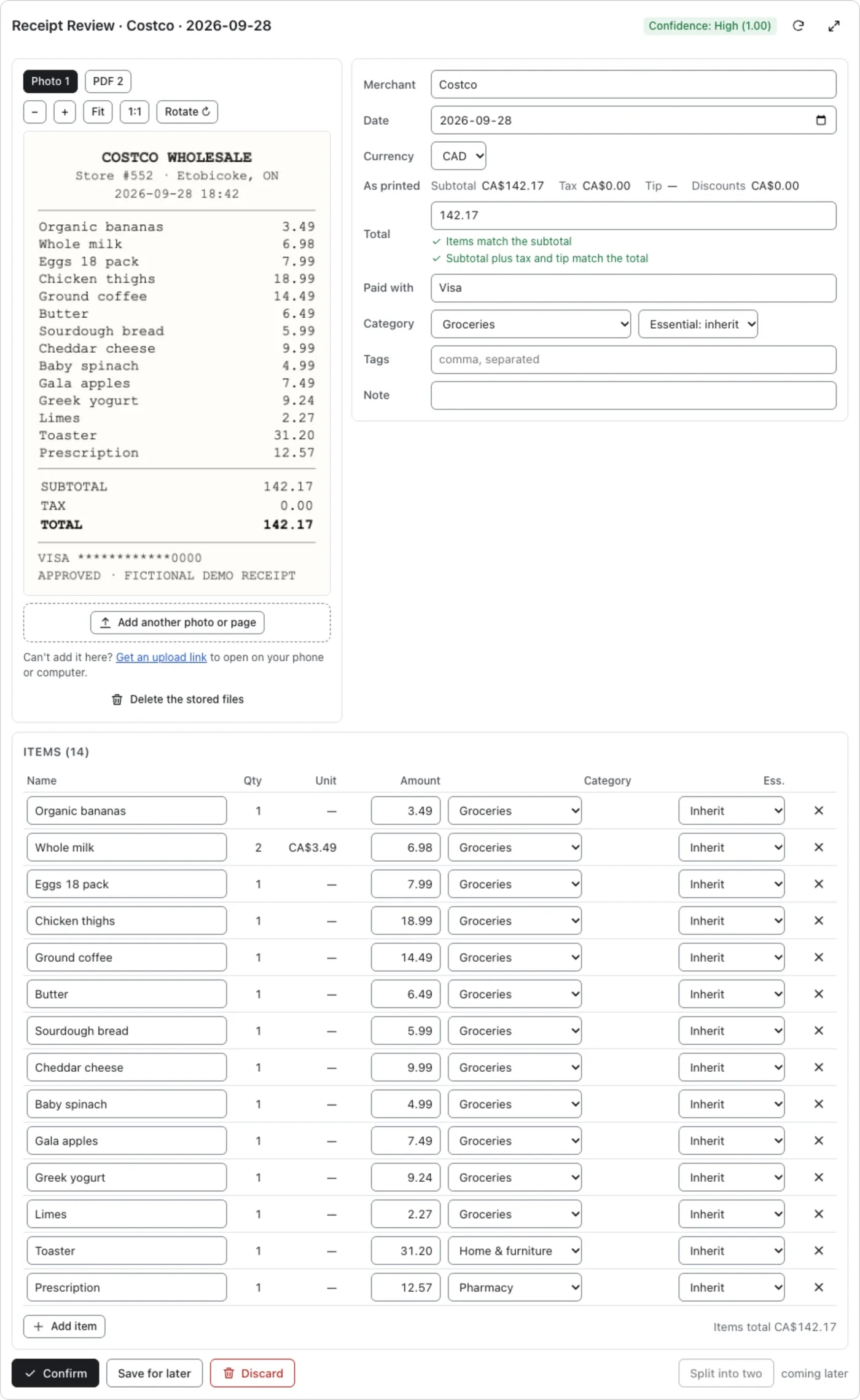
Card and account numbers are removed from what is recorded, and location data is stripped from photos. The photo or PDF stays with the transaction unless you turn image storage off. You can delete any receipt’s files while keeping the transaction. ChatGPT passes attachments through today. In Claude, when the photo is not passed along, the receipt is still logged and you add the file from the review screen or an upload link.
With Plus you can also forward emailed receipts to a private address of your own. They wait in an inbox until you ask your assistant to record them.
Asking how you are doing
Once there is something in the record, the questions get interesting. Six questions Finances For AI was built around:
- “What category did I spend most on last month?”
- “Did I buy batteries, milk and dog food this week?” Yes or no for each, with the date and the receipt where it found them.
- “Show me a graph of my spending over the past 3 months.”
- “What did I spend on essentials vs non-essentials?”
- “How much did I spend on takeout over the past year?”
- “How much did I spend on rent in September 2025?”
The line-item questions work because receipts are stored as items, not as one lump. Each category is marked essential or not, and you can override any purchase or any single line. So the essentials split is yours, not a guess.
And the everyday one: “How am I doing this month?” The answer reads your numbers back against what you set. Which budgets are on pace and which have passed, what renews next week, how net worth moved, how each goal is doing.
You can ask for more than a reading. “Looking at this month’s purchases, where could I spend less?” or “Go through my purchases and find lower-cost alternatives.” The answer is your assistant’s; Finances For AI supplies the record.
What appears in the chat
Answers come back as text, or as a screen when a screen is clearer. AI assistants that support the MCP Apps protocol (including ChatGPT and Claude) show visual, interactive screens inside the chat. Elsewhere the same answers come as plain text. There are nine: Dashboard, Spending Report, Transactions, Receipt Review, Recurring, Net Worth, Goals, Categories and tags, and the Setup Wizard.
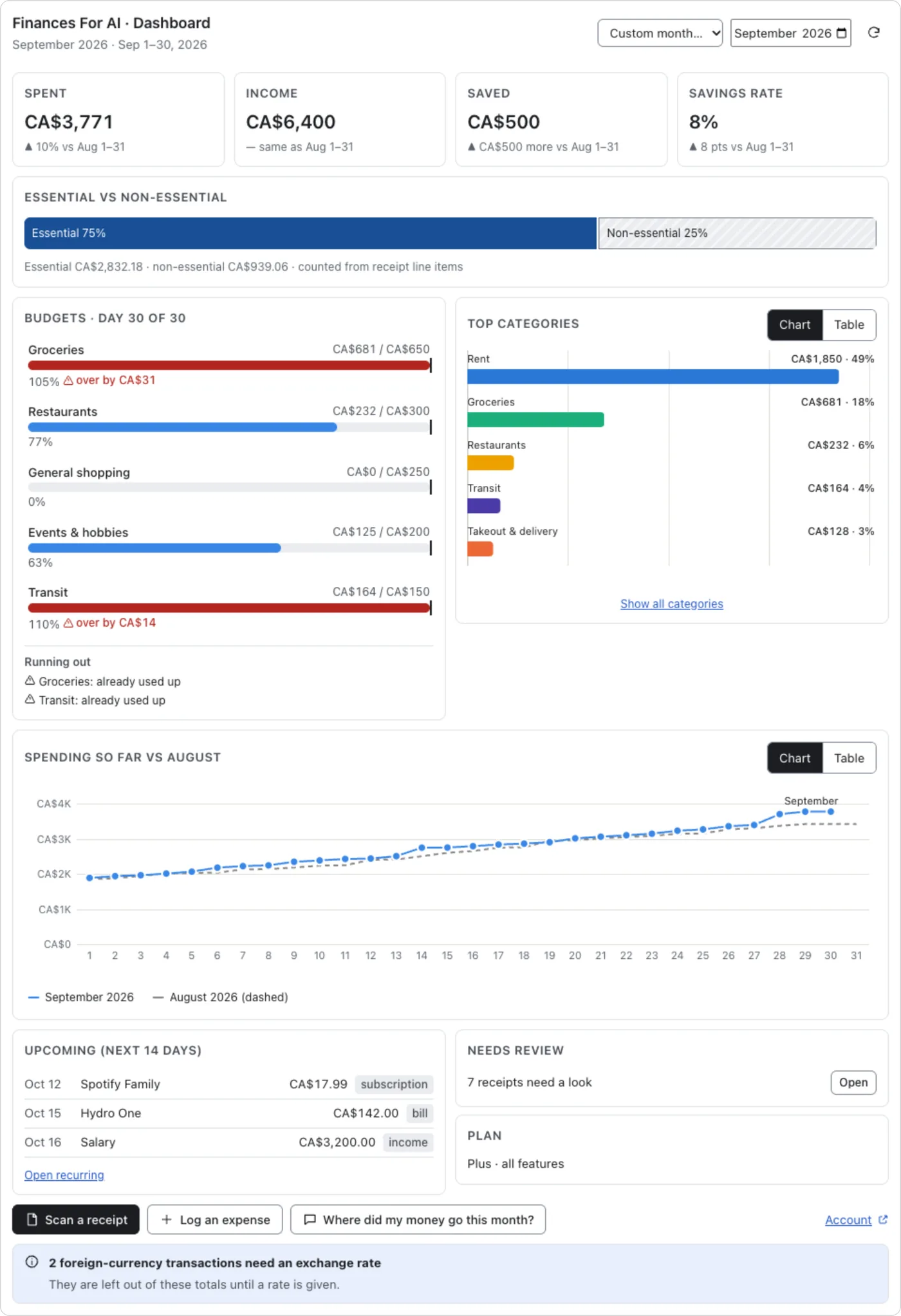
The Dashboard is the one to ask for first. “Show me my month so far” brings up income, spend, savings rate and the essentials split. Below them: the budget bars with what is running out, top categories, upcoming renewals and any receipts waiting for review.
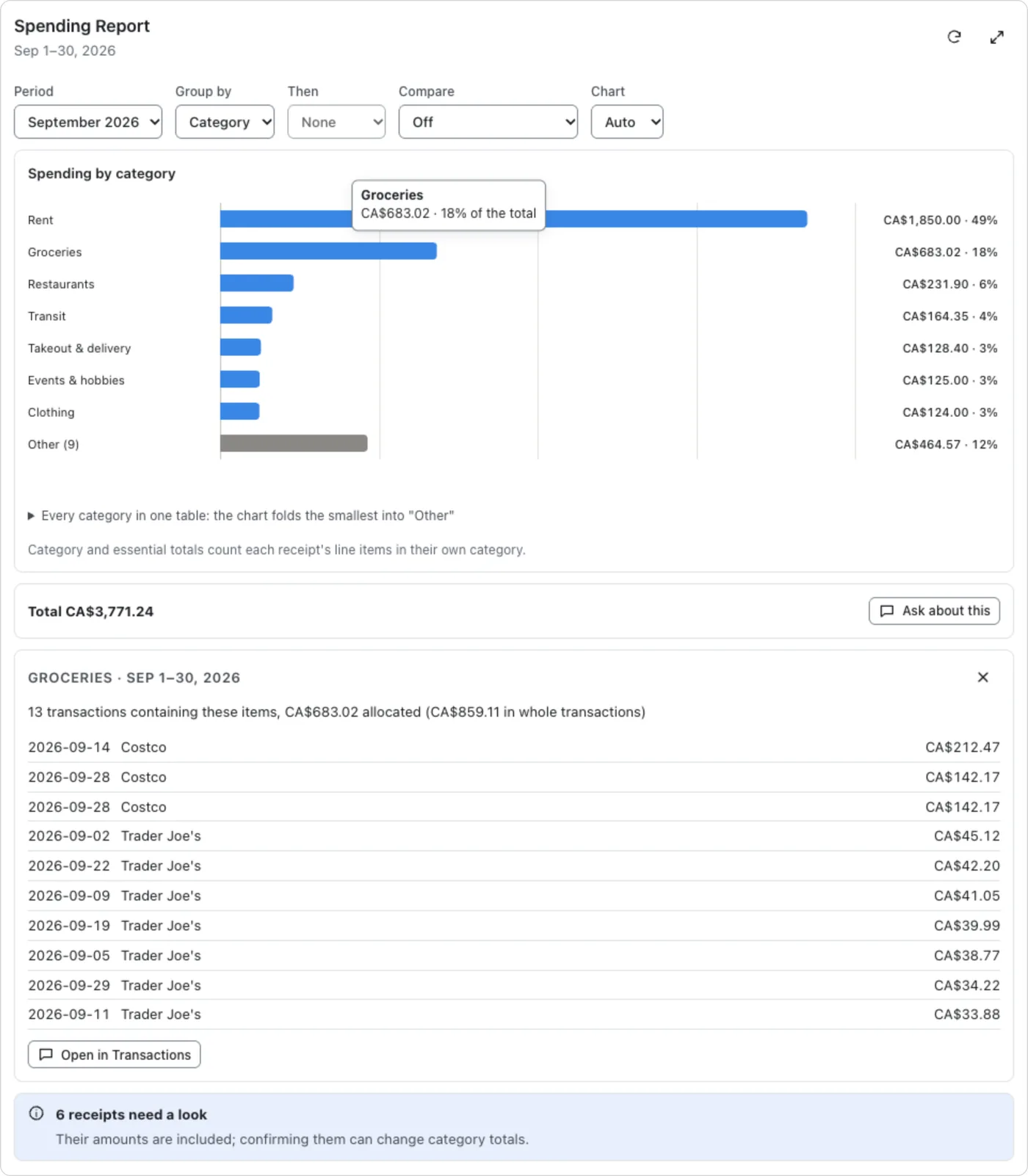
The Spending Report is the chart you ask for by name. “Show me a graph of my spending over the past 3 months” opens columns by month stacked by category. It has a table view, a comparison with the previous period, and a pie if you prefer one. Every chart drills down: click a bar and the transactions behind it appear under the chart.
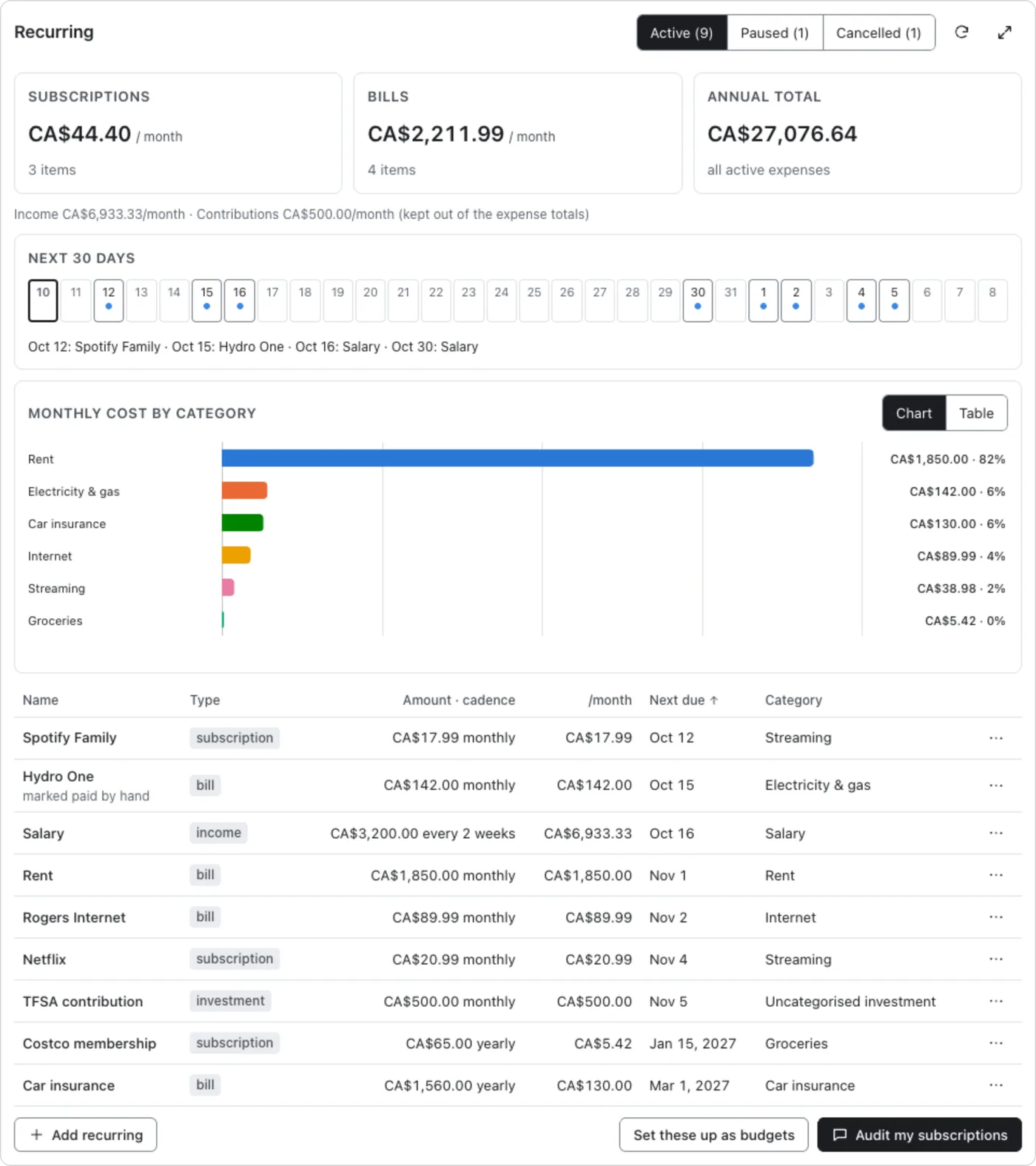
Recurring is the subscriptions list. “Show my subscriptions” gives every renewal with its next due date, its monthly cost and a thirty-day calendar. Price changes are kept with their dates. You can mark one paid at a different amount, pause it, cancel it or skip a month.
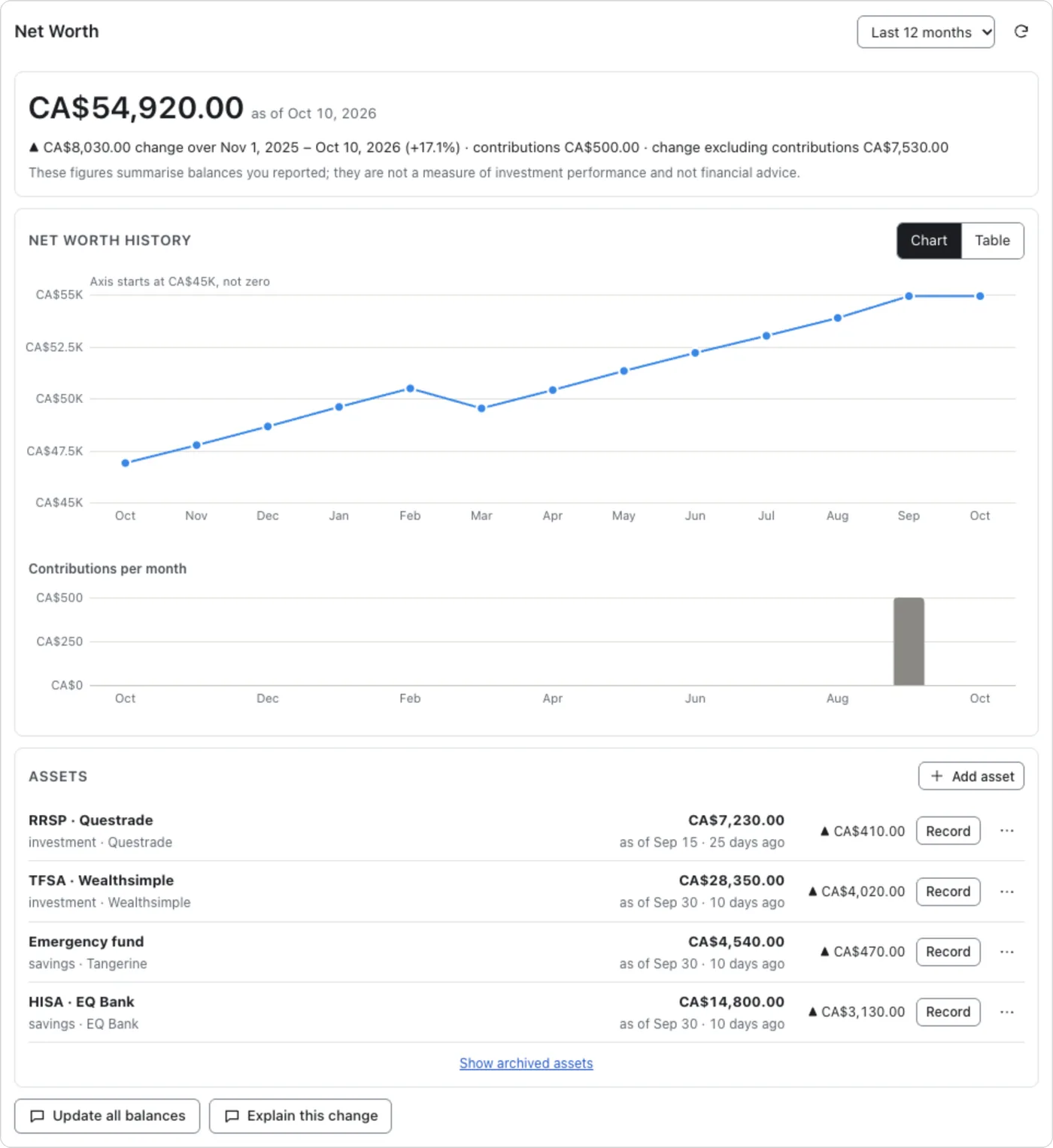
Net Worth is a line of the balances you record, with the trend and contributions per period. There is no brokerage feed. You read a balance off your account and say it. The screen’s own footnote reminds you these are reported balances, not a measure of investment performance.
Budgets that speak up
Set a budget by saying it: “Set a $400 a month budget for takeout.” From then on, when you log something in that category, your assistant tells you when the budget passes 80% and when it runs out. Once per budget per month. Goals work the same way. “Set a goal: $4,000 for a trip by next August” gives you a target with its progress and its pace over the last ninety days. It also shows the date it would be reached at that pace, and whether that is ahead of, on track for or behind the date you set. These are facts from your record. Ask “what would get me there?” and your assistant reads them and says what it sees.
What it costs
You pay for the record, not for the AI. The assistant you already pay for does the reading and the talking, so the price covers the record and nothing else.
Free is forever, not a trial: 50 logged transactions a calendar month, every screen and every report, 1 GB of receipt files, two active goals, export always. At 50 in a month, adding pauses until the 1st; everything else keeps working.
Plus is US$24 a year, plus applicable taxes: unlimited transactions, unlimited goals, 20 GB of receipt files, and receipts by email. (Just $2 per month.) It renews yearly, you can cancel any time, and the first year’s payment has a 30-day money-back guarantee. The details are on the plans page.
What it does not do
Finances For AI does not connect to a bank, card or brokerage. Every record comes from you, by sentence, receipt or a balance you read off, and nothing syncs in the background. (We’re considering adding bank account sync. If you’d like it, ask your assistant to log the feature request.) For many people automatic sync is the better deal, and plenty of good apps offer it. This one is for people who would rather keep the record in the assistant they already talk to, and who want receipts itemised rather than lines imported.
There is no CSV import. You can paste a few rows into the chat and ask your assistant to log them. Each sign-in is its own account, so there is no shared household record. Your account has one base currency. Log a purchase in another currency and give the exchange rate, which your assistant can suggest.
Your data lives in one database per account, hosted on Cloudflare, encrypted in transit and at rest. Export everything as CSV or JSON, and receipt files as a ZIP, any time, on any plan. Delete anything, including the whole account.
One line from the docs is worth repeating here: “Works best with more capable models.” The screens and the maths are the same whatever model you use. A stronger model reads receipts more carefully and asks better follow-up questions.
Try it with three sentences
Add Finances For AI, then type these, in order:
- “I spent $42 at Costco on groceries.”
- “Set a $500 a month budget for groceries.”
- “How am I doing this month?”
The third answer is the whole product in one reply.